
ReSto
Status
New in current version (1.50.1042.252, Marts 2026): The ReSto app has had an major update in this version. Stability and speed etc. improved.
A new sequence type based on SQL filters has been added.
From Version 1.50.1031.247: the AutoUpload document version is updated, i.e. can not be loaded by older versions.
From Version 1.50.1033.249: Seperate folder location for each document type.
From Version 1.50.1039.250: New parameter retrieval methods.
From Version 1.50.1042.252: Setup display filter
ReSto versions Contents

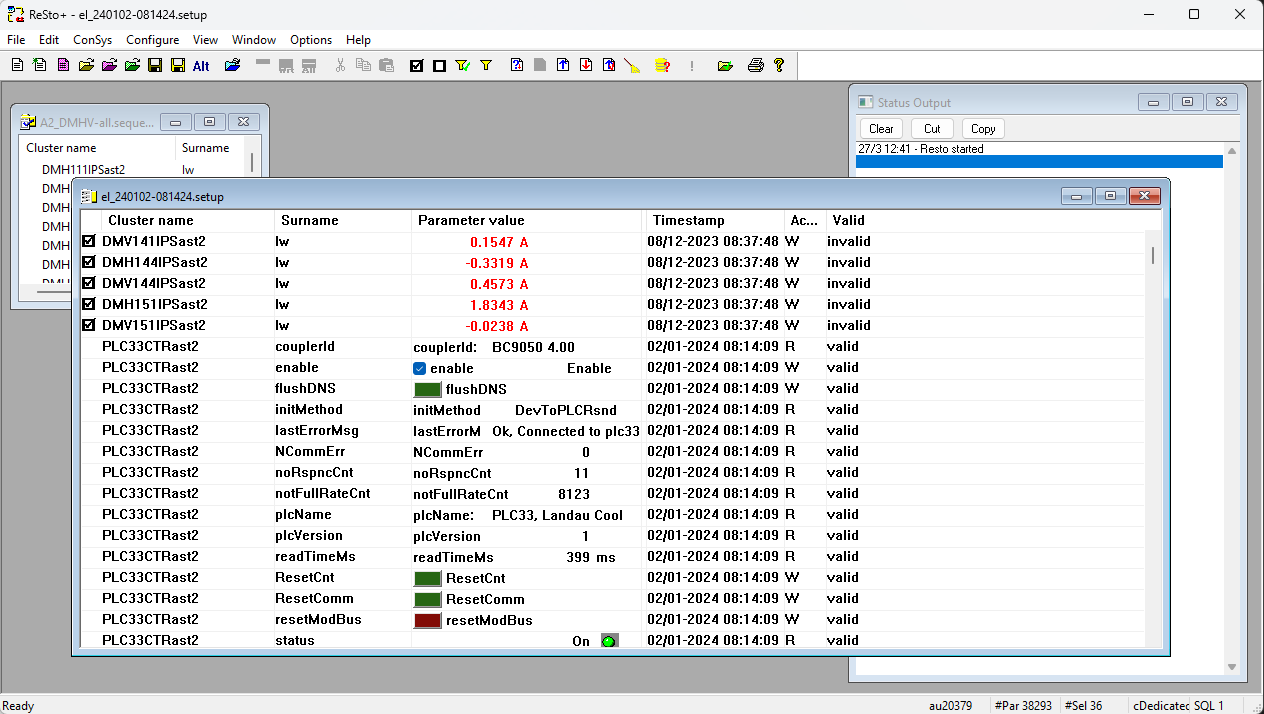
 The ReSto application is used for storing and restoring settings/current values in the control system. Uploaded settings are stored in binary format in a ReSto setup file. Selected stored setup values can be downloaded by applying a sequence file to the setup file. The standard sequence file is text-based list of parameters to be downloaded. When a sequence file is applied to the setup file, the parameters that will be downloaded is marked by a
 mark. Selected stored setup parameters can be compared to current values. Again, the sequence file is used for selecting the parameters used.
The ReSto application is also used to check CsLog2020 status.
 Create a new standard sequence.
 Create a new SQL filter based sequence.
 Create a new standard sequence based on current selections in active setup document.
 Open an existing setup document
 Open standard sequence file
 Open CsLog2020 status file
 Save the active document
 Export parameters in sequence to text file. Remark: Not all data types are supported. Unsupported data types are skipped
 Open a new parameter retrieval
 If checked, all document paths use the alternative set of path loactions.
 Drag-drop action to sequence adds the dropped parameter alone
 Drag-drop action to sequence adds all write parameters in the cluster for the dropped parameter
 Drag-drop action to sequence adds all parameters in the cluster for the dropped parameter
 Cut the selection and put it on the Clipboard
 Copy the selection and put it on the Clipboard
 Insert Clipboard contents
 Mark all/filtered parameters as selected. If display filter is applied, only parameters in the display filter is marked.
 Clear all/filtered selections. If display filter is applied, only parameters in the display filter is cleared.
 Apply filter on setup parameters to display.
 Set/edit filter settings for parameters to display.
 Apply sequence to setup document. Opens a list of sequences if more than one sequences loaded.
 Apply default sequence selected in the sequence manager
 Upload current settings based on selected gropus and options
 Download selected values (values applied sequence) from setup to devices
 Get and check current values for selected parameters in check column
 Clean list - remove all parameters not in selected sequence. Unmarked parameters are removed from setup!
 Get CsLog2020 log status for selected groups
 Recreate status output window if closed.
 Check parameter names on open
 Print the active document - reduced number of informations
 Open this help page.
The folder location for each document type is handled independently. The last opened/saved location for each document type is remembered in ReSto and read from registry at to registry at startup and written to registry at shutdown. For each document type an alternative location is also stored. This could be useful if there are two default places to store ReSto documents (ex. Nat_ISA_Astrid and Nat_ISA_Astrid2 sub folders). The alternative set of locations is used if the 'File|Alternative Paths' – also present as a toolbar button 'Alt'.
Document types
Setup (.setup): Parameter values uploaded from ConSys pararamers.
Setup txt, dat (.txt, .dat): Setup files stored as text files.
Sequence (.sequence): Parameter based selection filter to be applied on setups.
SQL Sequence (.seqSQL): SQL like selection filter to be applied on setups.
Auto upload (.aut): Auto upload configuration file.
CsLog2020 status (.csLog20): Uploaded CsLog2020 log status files.
Parameter Retrieval: For data retrieval two different set of folder locations is remebered. The source file location and retrieved file save folder locations are stored indepently.
Current values from a selected set of source parameters can be uploaded to ReSto by pressing the  upload button. When pressing the upload button an upload selection form is opened in which the parameters to upload can be selected. Selections made in this form is remembered from the last upload. When Ok is pressed the upload is started - status of the upload including any problems during the upload will be displayed in the Status Output window. If a default sequence is defined and set to be applied to upload the sequence is applied to the uploaded data after the upload.
Parameters marked with a checkmark in the setup documement are selected elements. Selected elements can be sset directly or by applying a sequence. The operations 'Download settings' and 'Check current values' only operate on checked elements.
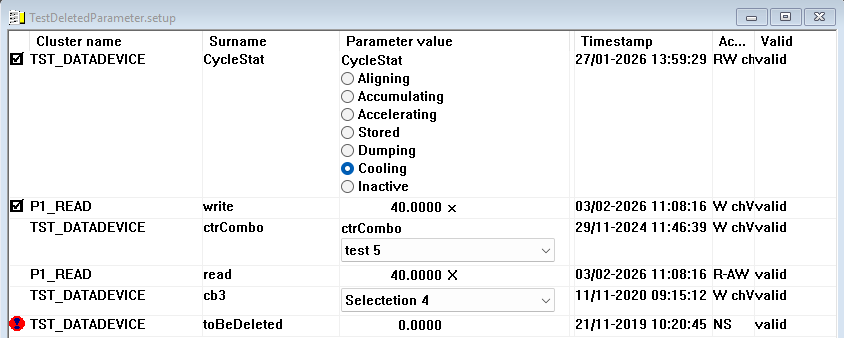
 When a file is loaded, and the content is not consistent with the information listed in the database, the faulty parameters are marked by an exclamation sign. If a parameter is marked, it may be deleted from the database, or the definition of the parameter is changed - for example from a floating point to a word.
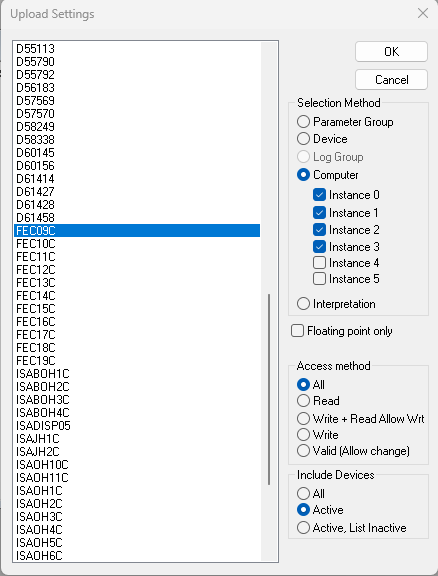
Selection Method Select the type of elements to base the upload selection on. The list box will be filled with elements according to the selection method. After choosing the selection method one or more elements can be selected for upload in the selection list. For the selection method 'Computer' the additional instance filters must also be set.
Floating point only If selected, only floating point parameters will be uploaded.
Access method Access mode filter to apply on upload.
All: access mode filter will not be applied - all parameters uploaded.
Read: Read only parameters.
Write + Read Allow Wrt: Write parameters and read parameters with read allow write flag set.
Write: Write only parameters.
Valid (Allow change): Allow change valid flag set - usefull for finding parameters with allow change valid set.
Include devices Select devices to include in the upload.
All: All devices include (device filter not added)
Active: Only devices with the active flag set in ythe database is included (the device is running)
Active, List Inactive: As Active, but parameters not uploaded due to inactive device will be listed in the Status Output window.
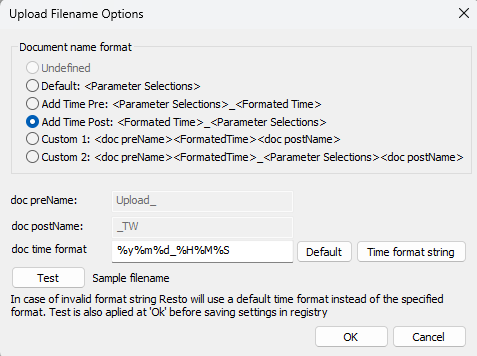
The title of the uploaded document is generated based on the settings defined in the 'Upload Filename Options' found in the menu 'Configure|Upload Filename Options'.
Document name format: Select the name format to apply when generating a new document title. Dependent on the option chosen, the addional document name fields are included in the document title.
doc preName Fixed text added at the start of the name
doc postName Fixed text added at the end of the name
doc time format Time string format for title names that includes time. Use C++ format strings. Press 'Time format string' for help.
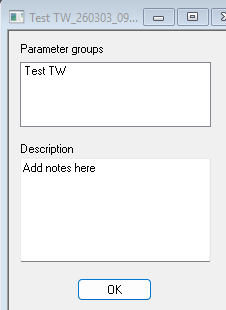
It is possible to add information to setup file. To display, and edit this information, select the menu item View/document info. Could be useful when browsing old files.
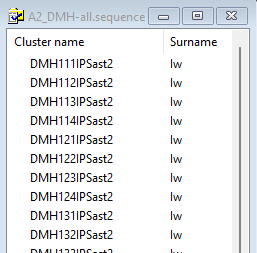
 The sequence file is used to select the parameters for which a download or a get check values operation should be performed on. Usually, you have only a few sequence files and use them again.
To apply a sequence file to a setup file, you must first load (or create) a sequence file. When the file is loaded, select the setup file you want to apply the sequence on. Now select the menu ConSys/Apply sequence. This produces a list of the sequences currently loaded in the program. Select one of the sequences. When a sequence is selected, the parameters in the setup file for which there is a entry in the sequence file is marked by an
icon.
Before downloading parameters to the system, it may be a good idea to upload check values, to gain a overview of the changes made by a download. To download the parameters, simply select the
 button. Be careful, this operation modifies a large number of parameters in a single batch, and there is no warning!
To create a new sequence file select the menu item file/new or press the button
 . This creates a new, and empty sequence file. To add parameters to the sequence file simply drag parameters from the setup file or from the console to the sequence file. For a description of drag and drop of parameters, see the console documentation.
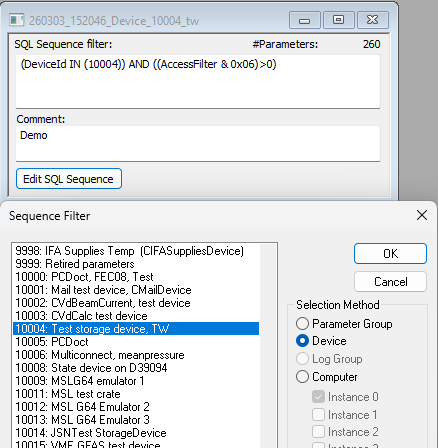
Another way of creating a sequence filter is using the SQL sequence filter. Instead of having a list of parameters as the standard sequence this sequence type is based on a SQL filter on the ConSys system tables like the filter used when selecting the setup file upload. When creating a new SQL based filter a dialog like the dialog used for selecting upload parameters is shown. The initial SQL sequence filter is built from the selections made in this dialog. The generated SQL filter can be altered manually – but remark that as long the generated SQL is not altered manually it can be changed by pressing 'Edit SQL Sequence'. SQL sequences are applied and used in the same way as standard parameter-based sequences. The SQL sequences are stored in text format in files with extension 'seqSQL'.
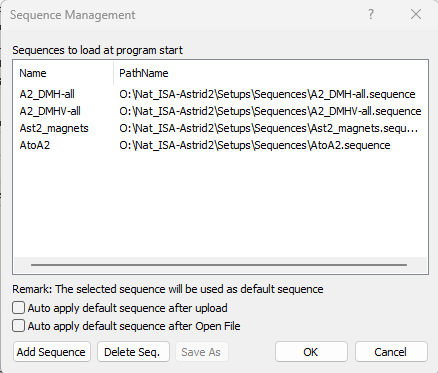
Use this feature to specify sequence files to be loaded when ReSto starts. To configure, select 'Configure|Sequence Management'. The files shown in the configuration dialog list box will be loaded when the program starts - and closing of the configuration dialog with 'Ok'. If a sequence is selected in the sequence list, this sequence will be the default sequence to apply after uploads. It can be applied manually to a setup by the 'Apply default sequence' button in the toolbar - or automatically after upload/opening of a file. The sequence management configuration is stored in a file in the local ConSys executable directory.
Auto apply default sequence after upload: If checked, the default sequence will be applied after normal/manual uploads. Sequences are not applied to automatic uploads.
Auto apply default sequence after Open setup file: If checked, the default sequence will be applied when a setup file is opened.
Control (write) parameters can be downloaded to the ConSys devices from the setup document by applying a sequence file to the setup to download parameters from. The sequence must contain parameters with write access. When the download command is given ReSto sends a package with selected set values from the setup to ConSys devices. The devices are requested to respond with the actual set by the device. ReSto will display the received set values in the check column. If there are values that have has differences or has not been set messages lines will be added to the output list window.
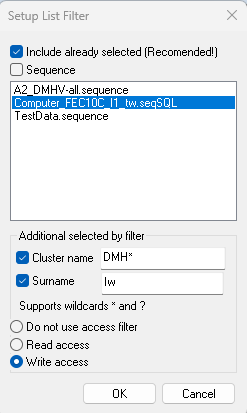
The setup display filter is used to limit the number of parameters listed in the setup view. The actual number of parameters are not changed - and the operations like check, upload check values and save are not affected by the filter. The only operations affected by the filter is the select all/filtered and clear all/filtered methods. If a filter is applied, only the filtered parameters are marked or cleared by these operations.
Include already seleted If checked, all parameters already marked will stay visible in the list. Recomemended to always keep checked if you are using the download method to ensure all parameters to be downloaded are visible in the display list.
Sequence If checked, the parameters in the selected sequence below will be in the filtered list. Does not need to be the same sequence as the eventual sequence applied to the setup.
Additional selected by filter Settings in this group adds filtered selections to the section above. Can be used to filter on cluster names and surnames. Optianal a read or write access filter can be added to the filter selection for the parameters selected by the cluster and surname.
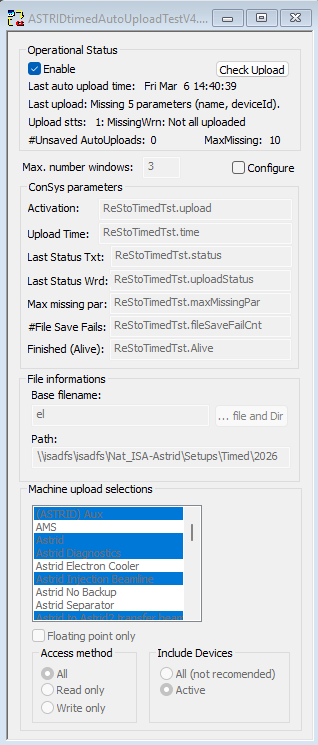
Console parameters
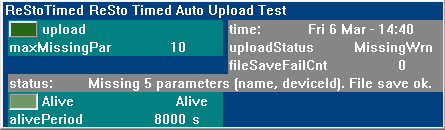
The Auto Upload feature is used to control uploading from the control system. A control bit, typically defined on a storage device, is used to trigger the upload. When the activation bit is set active (high) from the control system an upload is made. When the upload is finished the data is stored and the activation bit is set FALSE again. The upload will be based on the selections made in the auto-upload window. The uploaded data will be saved in the directory specified in 'File information' with a file name build from the base filename and the date and time. If an auto-upload configuration file is given as startup option to ReSto, the auto-upload configuration will be loaded at startup. If the auto-upload was saved in an enabled state, it will startup enabled when loaded.
New from version 1.50.1031.247: Auto Upload status state, meant to be used with StateMonitor generated warning SMS if there are failures during the auto-upload.
Upload status values
0, Ok: Uploaded ok
1, MissingWrn: Not all parameters uploaded
2, MissingErr: Too many parameters did not upload (compared to limit set in 'acceptedNumberNotUpload')
3, NoParameters: No parameters uploaded
4, FileSaveErr: Upload file save error
Status >= 2 error in stateMonitor-> (SMS).
Corresponding interpretation for WORD text display: Ok|MissingWrn|MissingErr|NoParameters|FileSaveErr|
Autoupload is meant to be used with Ramp Control to make automatic storing of settings at regular intevals and/or at specific states.
Operational status
Enable: Enable the autoupload. When enabled, connects to ConSys and uploads data whenever the activation bit is set active. Remark, that the startup operational state when a autoupload is loaded will be the same as the state when the configuartion was saved.
Check Upload: Make a upload with the current configuration and save the data. Same effect as setting the activation bit from ConSys.
Max. Number of Windows: The number of windows to keep open after upload. When the limit is reached, the oldest window with uploaded data will close. 0 is allowed => no data window after upload.
Configure: Check to enable configuration mode.
ConSys Parameters:
Activation: Must be a ConSys bit parameter. When set active/TRUE, an
autoupload is performed. Cleared/Set FALSE from ReSto when the autoupload is
finished.
Upload Time: Must be a ConSys time parameter. ReSto will write the last
upload time to this value when a upload has finished.
Last Status Txt: Optinal, a ConSys string parameter. ReSto will write the last
upload status to this value when a upload has finished.
Last Status Wrd Optional, a ConSys Word parameter. ReSto will write the upload status value descibed in the upload description above to this parameter if specified.
Max missing par Optional, a ConSys Word parameter. ReSto will read the maximum allowed failed parameters before going to upload status level 2.
#File Save Fails Optional, a ConSys Word parameter. ReSto will write the number of unsaved auto-upload documents (due to file errors) to this parameyer.
Finished (Alive) Optional, a ConSys bit parameter. Write alive TRUE message to this paramter when the client is started and on Upload times. Set to FALSE when the device is closed. Supposed to work with a storage device pulse bit with the pulse time set a litle longer than upload period.
Auto Upload Selections:
Machine/Parameter groups to upload.
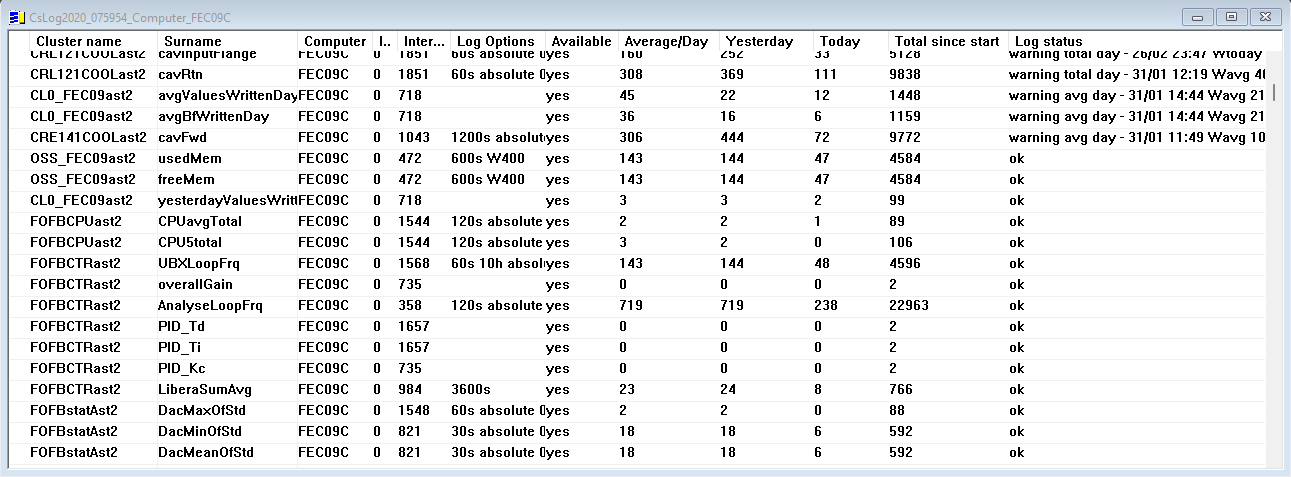
The CsLog2020 data log status of individual parameters can be checked using the CsLog2020 log status check option in ReSto. By activating the 'Get CsLog2020 status' a selection dialog like the dialog for uploading current value settings opens. In this dialog choose selections for wanted status checks. This will upload the current log status for the selected parameters.
Refresh: CsLog2020 status data can be reloaed from devices by menu 'View|Refresh Log data' or by pressing F5.
List columns
Cluster name, Surname The name of the ConSys parameter.
Computer, Instance Device location.
Log Options A description of the log options defined for the interpretation used for the parameter. Empty if default log options is used.
Available yes: The parameter is set up for logging. no: Logging not defined for the parameter.
AverageDay Average number of values logged per day since device start.
Yesterday Number of loggings made yesterday.
Today Number of loggings today since midnight.
Total since start Total number of loggings since device start.
Log status Shows the current log status.
Ok: Loggings are made according to log settings.
Warning: Number of loggings/day reached warning limit. Loggings are still made at full rate. Warning conditions added to message
Quarantine: Number of loggings/day reached quarantine limit. Log rate are reduced. Quarantine conditions added to message
See also CsLog2020 log options
This feature is used to retrieve a set of parameters from multiple files. The parameter selection is based on sequence files. To retrieve parameters, start by opening or creating the sequence file that should be used to select parameters to be retrieved. Then call 'Parameter Retrieval' from the 'File' menu. Select the files to get parameters from and the sequence to use as filter.
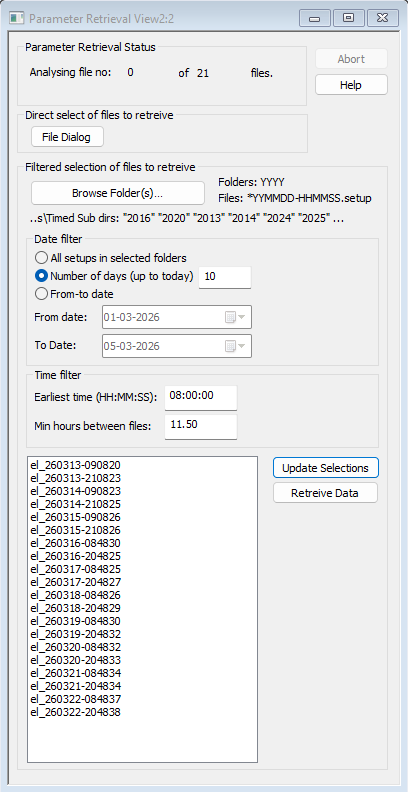
Parameter Retrieval Status Show the total number of files to be retrieved with the actual selections and current number of analysed files during retrieval
File Dialog Opens a file browser to direct selection of files to be analysed.
Filtered selection of files to retrieve
Using the filtered selection of files to retrieve is an easy way to select files to retrieve given by the dates and optional earliest time on day and following minimum hours between files. All settings in the parameter retrieval filter form are stored in the registry to be used as default selections when opened next time. To use the filtered selection method the setup filenames must have the format
*YYMMDD?HHMMSS.setup
where
*: any pre string
YY: last to digits in year
MM: month
DD: day
?: Any character
HH: Hour, 24 hour format
MM: Minute
SS: Second
Remark: all numbers must be two digits.
Example: 'el_260324-081201.setup
See also Upload filename options
Browse Folders Opens a file dialog to select the folders in which to search for setup files. If the setup folders are ordered in subfolders in format YYYY with setup files these subfolders belonging to the year with the name of the folder the parameter retrieval will find the files in the correct subfolders if the base folder for the YYYY folder is selected. Remark that like the other file storage locations two set of source folders are stored in the registry and used when opening a new retrieval - one set for the standard location and one set for the alternative folder location.
Date filter Select the dates from which to retrieve setup files. The time filter is applied after the date filter. The radio buttons in selects either all files selected by the file browse options, number of days up to today or a specified date period. For the last two selections the selected folders must contain the given date range of setup files. When using the last two selections it is recommended to use the base folder of yearly sorted setup files if folders are in the YYYY format.
Time filter Specifies the time filter options applied after the date selection options
Earliest time The earliest time for the first setup file used on a given day. In the format HH<<:MM>:SS.> If 0 is specified, earliest time is not considered.
Min hours between files If min hours between files is greater than 0 the setup files need to be at least the specified time apart from each other. The minimum time between files can be a floating-point number.
Example: If the first time set to 08:00:00 and the minimum hours to 11.5 there will be up to two setup files per day in the retrieval list – where the first file will the first stored setup file after 8:00.
Update Selections By pressing 'Update Selections' the selected folders will be searched though and files matching the current date and time filter selections will be updated in list box next to the 'Update Selections' button. Also updates the total number of files to retrieve in the status section.
Retrieve Data By pressing the 'Retrieve Data' the file selection list is updated like when pressing the 'Update Selections' button. After updating the file selection list, a sequence must be applied to the select the parameters to retrieve before the retrieval process starts.
Retreive Data The result parameter retrieval can be stored as a comma delimited text file. The file can be saved either with default formatting by using 'Save' or with optional output format selections by 'Export to text file'
Selected parameters in a setup can be exported in text format. Exported text files opened as a setup document.
The ReSto text file format can store values of different types and includes valid flag and timestamp for each value. The first line in the text file must be 'ReSto format 1'. Then any number of text lines with description follows. These are in exported data document name, upload time, Description and applied sequence filename. The data lines follows the data header wich must be 'ClusterName SurName Datatype Value Valid Timestamp'.
<'Resto format 1'>
<any text>
<any text>
..
<any text>
<Data header>
<Data line>
<Data line>
...
<Data header> = ClusterName<tab>SurName<tab>Datatype<tab>Value<tab>Valid<tab>timestamp
<Data line> = <ClusterName><tab><SurName><tab><Data Type><tab><data value><tab><valid flag><tab><timestamp>
<Data Type> = <ConSys data type id, integer>
Last Modified 01 April 2026